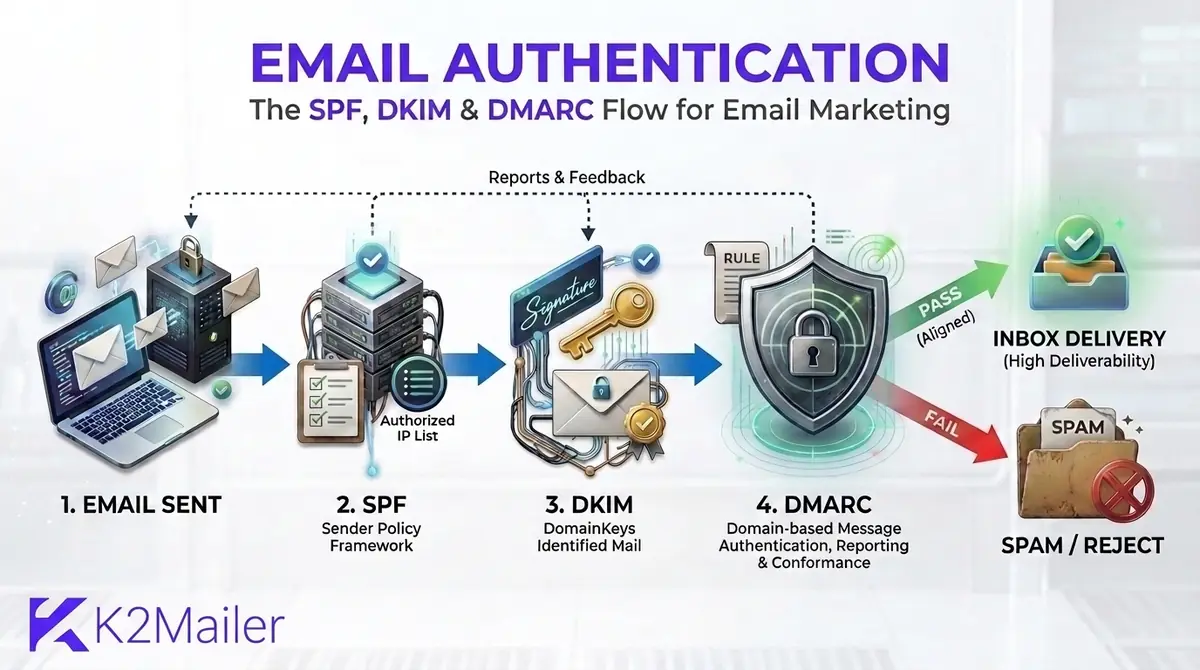
What Is Email Authentication? Email Auth in Plain English
Here is something that surprises most people the first time they hear it: anyone can type your domain into the From field of an email. Email was designed in a more trusting era, and the original protocol never checked whether the sender was who they claimed to be. Email authentication is the fix that was added later. It is a set of DNS-based checks that let a receiving server ask, before deciding where a message goes, whether this email really came from the domain it claims.
If you have searched for what is email authentication, email auth, or what is domain authentication, they all point to the same family of checks. Strictly speaking it is email domain authentication, sometimes called DNS authentication, because the proof lives in DNS records on your email domain. You publish a few records in DNS, your email platform adds a signature to every message, and mailbox providers like Gmail and Outlook compare the two. When they match, the message earns trust. When they do not, it can be filtered, quarantined or rejected.
A simple way to remember it
Think of SPF as the guest list at the door, DKIM as the wax seal on the envelope, and DMARC as the house rule that tells the doorman what to do when a guest is not on the list or the seal is broken.
Email authentication vs email verification
These two get mixed up constantly. Email verification, sometimes searched as verify emails, checks whether a recipient address is real and able to receive mail. Email authentication checks whether you, the sender, are allowed to use your domain. You need both. Verification protects you from bounces, and authentication protects your domain from impersonation. Our guide to hard vs soft bounces explains what happens when bad addresses slip through, and email list building strategies shows how to collect clean addresses in the first place.
Email Authentication Methods: What Are the Five Common Ones?
When people ask what are email authentication methods, they usually mean this set of five. Three of them do the real authenticating. The other two build on top of them.
| Method | What it checks | Where it lives | Do you need it? |
|---|---|---|---|
| SPF | Whether the sending server is authorized to send for the domain | TXT record on your domain | Yes, for every sending domain |
| DKIM | Whether the message carries a valid signature and was not altered in transit | TXT record (some providers use CNAME) at selector._domainkey | Yes |
| DMARC | Whether SPF or DKIM passes and aligns with the From domain, and what to do if neither does | TXT record at _dmarc | Yes, and required by Google and Outlook.com for high-volume senders |
| ARC | Preserves authentication results when mail is forwarded or passes through a mailing list | Added by intermediaries, not a record you publish | Usually handled by the forwarder |
| BIMI | Shows your brand logo beside authenticated mail in supporting inboxes | TXT record at default._bimi | Optional, and it requires DMARC enforcement |
ARC and BIMI do not authenticate mail on their own. ARC helps receivers trust mail that was legitimately forwarded, and BIMI builds on a DMARC policy of quarantine or reject. Inbox support for BIMI also varies by provider.
Passwords and two-factor sign-in are also called authentication, but they protect accounts, not messages. Everything in this guide is about the email kind.
Why SPF, DKIM and DMARC Matter More Than Ever
Authentication used to be a nice-to-have that deliverability specialists argued about. In 2024 it stopped being optional. Google's email sender guidelines require anyone sending more than 5,000 messages a day to Gmail accounts to set up SPF, DKIM and DMARC, make the From domain align with SPF or DKIM, support one-click unsubscribe on marketing mail, and keep spam rates below 0.3%. Those rules took effect on 1 February 2024, and Yahoo announced matching requirements alongside Google.
Microsoft followed. Outlook.com, Hotmail.com and Live.com began enforcing authentication requirements for high-volume senders on 5 May 2025, with the same 5,000-messages-a-day threshold. Mail that does not comply can be filtered or rejected, and rejections show up as SMTP errors such as 550 5.7.515.
Even below those volumes, authentication pays for itself in three ways:
- Spoofing protection. Without DMARC enforcement, nothing tells receivers to refuse someone else's mail that uses your domain in the From line.
- Deliverability. Authenticated mail gives mailbox providers a stable identity to attach your sending reputation to. Our email deliverability guide explains how that reputation is built and protected.
- Fewer mystery failures. When something goes wrong, the authentication results in the message headers tell you exactly which check failed.
Business buyers are the strictest audience. Corporate mail gateways check authentication before a person ever sees your message, so a missing record can quietly stop a whole nurture sequence. If you send to companies, read our guide to B2B email marketing services for the deliverability and compliance checks that matter most.
One honest caveat. Passing SPF, DKIM and DMARC proves who you are. It does not prove you are worth hearing from. Spam complaints, old lists and unwanted content can still send you to the junk folder, which is why authentication works best alongside the habits in our bulk email sender guide and a well-kept email suppression list.
What Is SPF? How an SPF Record Works
SPF stands for Sender Policy Framework and is defined in RFC 7208. It is a list, published in DNS, of the servers allowed to send mail for a domain. When a message arrives, the receiving server looks at the envelope sender (the Return-Path or MAIL FROM address, which is separate from the From name people see), fetches that domain's SPF record, and checks whether the connecting IP address is on the list.
That envelope domain is your SPF domain. When you send through an email platform it often differs from your visible From domain, and that difference becomes important when we reach alignment in the DMARC section.
What an SPF record looks like
v=spf1 ip4:192.0.2.10 include:_spf.google.com include:spf.your-email-platform.example ~allRead it left to right. The v=spf1 part declares the version. The ip4 entry authorizes one address (192.0.2.10 is a reserved documentation address). Each include borrows another sender's list, here Google Workspace and a placeholder for your email platform. The ending says what to do with everything else.
| Ending | Meaning | When to use it |
|---|---|---|
| -all | Hard fail: mail from unlisted servers should be rejected | Once you are sure the list is complete |
| ~all | Soft fail: accept the mail but treat it as suspicious | A common starting point |
| ?all | Neutral: no opinion either way | Rarely useful |
| +all | Pass everything | Never. It authorizes the whole internet |
Many senders keep ~all and let DMARC make the final call on failing mail.
SPF limits that trip people up
- One record only. A domain should publish a single SPF TXT record. Two records cause a permanent error (permerror) and SPF fails for everything. When you add a platform, merge it into the record you already have.
- Ten lookups at most. The include, a, mx, ptr, exists and redirect mechanisms each trigger a DNS lookup, and RFC 7208 caps them at 10 per check. Nested includes count too. Past the limit, SPF returns a permanent error. Plain ip4 and ip6 entries cost nothing.
- Forwarding breaks SPF. A forwarding server is not on your list, so SPF fails on forwarded mail. DKIM usually survives forwarding, which is one reason you need both.
- SPF does not protect the From address people see. That job belongs to DMARC.
That last point is why a message can pass SPF and still be a spoof, and why we do not stop here.
What Is DKIM? DKIM Records and DKIM Authentication
DKIM, short for DomainKeys Identified Mail (RFC 6376), works like a signed seal. Your sending platform generates a key pair. The private key stays on the sending side and signs every outgoing message. The public key is published in your DNS as a DKIM record. The receiving server reads the signature in the message header, looks up the public key, and checks that the signed parts of the message have not changed.
Two small details make DKIM much easier to debug. The selector (the s= value in the signature) is a label that tells receivers which record to look up, so you can run several keys at once or rotate them without downtime. The signing domain (the d= value) is your DKIM domain, and it is the one DMARC compares against your From address.
What a DKIM record looks like
v=DKIM1; k=rsa; p=MIIBIjANBgkqhkiG9w0BAQEFAAOCAQ8AMIIBCgKCAQEA... (public key truncated)Use a 2048-bit key if your provider supports it. Google's guidelines set 1,024 bits as the minimum and recommend 2,048. A 2048-bit key is longer than the 255 characters a single DNS string can hold, so many DNS hosts split it into several quoted strings automatically. If yours does not, check its instructions before pasting the value.
- DKIM verifies content, so anything that changes a signed message after it leaves your server, such as a mailing list adding a footer, can break the signature.
- Some DNS hosts add your domain automatically. If you type selector1._domainkey.example.com into one that appends .example.com for you, the record ends up at the wrong name and lookups fail.
- A published key does nothing until your platform actually signs with it. Confirm that signing is switched on, not only that the DNS record exists.
WordPress DKIM: why your site's emails are often unsigned
WordPress DKIM questions come up constantly because the default setup is a trap. Out of the box, WordPress sends mail through your web host's PHP mail function. Those messages are frequently unsigned or sent from a server that is not in your SPF record, so password resets and contact form notifications end up in spam or never arrive. The fix is to stop sending through the web server. Install an SMTP plugin, connect it to a transactional email provider or your email platform, publish the SPF and DKIM records that service gives you for your domain, then send a test and read the headers.
What Is DMARC? DMARC Records, Alignment and Policies
DMARC ties the other two together. It is a DNS record that tells receivers two things: what to do with mail that claims to be from your domain but fails authentication, and where to send reports about it. The domain it protects is your DMARC domain: receivers look for the record at _dmarc on the domain in your From address. The current standard is RFC 9989, published in May 2026, which replaced the older RFC 7489. Existing records keep working, and a record still begins with v=DMARC1.
Alignment: the part most guides skip
A DMARC check does not simply ask whether SPF or DKIM passed. It asks whether either one passed for a domain that matches the From address the reader sees. That match is called alignment. For SPF, the envelope sender domain must match the From domain. For DKIM, the d= signing domain must match it. Relaxed alignment, the default, accepts a match at the organizational domain level, so mail.example.com aligns with example.com. Strict alignment demands an exact match.
This is where many marketing setups quietly fail. If a platform sends with its own bounce domain and its own DKIM domain, SPF and DKIM can both say pass while neither aligns with your domain, and DMARC fails. Setting up a custom sending domain, with your own DKIM key and, where the platform offers it, a custom return-path, is what makes alignment work. You only need one aligned pass, either SPF or DKIM, but aligned DKIM is the sturdier one because it survives forwarding.
DMARC policies: none, quarantine and reject
p=none
Monitor only. Receivers deliver mail as they normally would and send you reports. This is where every domain should start.
p=quarantine
Receivers treat failing mail as suspicious, which usually means delivery to the spam folder. A good middle step.
p=reject
Receivers refuse failing mail at the server. The strongest protection against spoofing, and the goal once all legitimate senders pass.
What a DMARC record looks like
v=DMARC1; p=none; rua=mailto:dmarc-reports@example.comThe rua tag is where aggregate reports go. These are XML files sent by mailbox providers, usually daily, that list which IP addresses sent mail using your domain and whether it passed. They are painful to read raw, so most teams send them to a DMARC report analyzer. One more thing: older records sometimes use a pct tag to apply a policy to only part of the mail. RFC 9989 dropped that tag and added a t flag for testing, so review any pct-based rollout the next time you edit your record.
How to Authenticate Your Domain: SPF, DKIM and DMARC Setup in 7 Steps
This is the order that avoids most mistakes. The goal is to authenticate every legitimate sender first and tighten the policy second. If you have been wondering how do I authenticate my email, or how to authenticate domain settings for a new platform, this is the whole process.
List every service that sends as your domain
Write down your email marketing platform, website or CRM, helpdesk, billing system and your company mailbox provider. Missing a single sender is the most common reason a strict DMARC policy later blocks real mail.
Choose your sending domain
Decide whether campaigns will go out from your main domain or from a subdomain such as mail.example.com. A subdomain keeps marketing reputation separate from everyday staff email, and many senders prefer that split.
Publish or update your SPF record
Add one TXT record that includes each sender, using the include value each provider gives you. If a record already exists, merge the new include into it instead of adding a second record, and stay under 10 DNS lookups.
Enable DKIM signing and publish the key
Generate the key in your email platform, choosing 2048-bit if it is offered. Add the record it shows at selector._domainkey on your domain, then switch signing on. Repeat for every service that sends as your domain.
Add a DMARC record at p=none
Publish a TXT record at _dmarc with v=DMARC1; p=none and a rua address that someone actually reads. At this stage nothing is blocked. You are only collecting evidence of who sends as your domain.
Wait for DNS, then verify
New records can show up within minutes, though some DNS hosts take up to 24 to 48 hours. Send a test from your real sending platform to a Gmail address and confirm that SPF, DKIM and DMARC all pass in the message headers.
Read the reports, fix gaps, then tighten
After a few weeks of reports, check that every legitimate source passes with alignment. Then move to p=quarantine, and later p=reject. Jumping straight to reject is how a business ends up blocking its own invoices.
| Record | Host or name | Type | Example value |
|---|---|---|---|
| SPF | @ (root domain, or your return-path subdomain) | TXT | v=spf1 include:spf.your-email-platform.example ~all |
| DKIM | selector1._domainkey | TXT (some providers use CNAME) | v=DKIM1; k=rsa; p=your-public-key |
| DMARC | _dmarc | TXT | v=DMARC1; p=none; rua=mailto:dmarc-reports@example.com |
Always copy the exact host names and values your email provider shows. The examples above only illustrate the shape of each record.
Authenticate your first sending domain
Add your domain, publish the SPF and DKIM records K2Mailer generates, and verify it before your first campaign goes out.
Setting Up Authentication in WordPress, Google Workspace, Microsoft 365 and K2Mailer
The three records are the same everywhere, but each platform asks for them in its own way. Here is how the common setups differ.
WordPress
Route mail through an SMTP plugin connected to a transactional provider or your email platform, then publish the SPF and DKIM records that service gives you.
Google Workspace
In the Admin console, open Gmail authentication, generate a DKIM key for your domain (2048-bit if offered), publish the record, then start authentication. Add Google's SPF include for your own mailboxes.
Microsoft 365
Publish the two DKIM CNAME records (selector1 and selector2) shown in the Microsoft Defender portal, then enable DKIM signing for the domain.
K2Mailer
Add your base domain under Setup, Sending Domains, publish the generated DKIM key, SPF and tracking records, wait for DNS to propagate, then run Verify DNS entries. Publish a DMARC record starting at p=none.
Two K2Mailer details are worth knowing. If you send through a provider such as Amazon SES or SendGrid, also confirm the domain inside that provider, because some providers apply extra sender-verification rules. And Campaign Preflight reviews the stored SPF, DKIM, DMARC and sender-alignment state before a campaign goes out. That state is the last verified one, not a fresh DNS lookup, so run verification again after you change a record.
Transactional mail such as receipts and password resets uses the same three records, so whatever system sends it must be covered by your SPF and DKIM too. That is one more reason to finish step one properly. Authentication also only covers email. Web push notifications, such as those sent with PushWave from a WordPress site, travel through the browser and do not use SPF, DKIM or DMARC at all.
What to look for in an email platform's authentication support
If you are comparing platforms, authentication support is a fast way to separate the serious ones from the rest. The K2Mailer features page shows how sending domains, pre-send checks and bounce handling fit together in one product, and our email marketing service guide gives a longer checklist for any vendor. Whichever you choose, ask whether it:
- Generates the exact SPF, DKIM and DMARC values and shows verification status for each record.
- Signs with your own domain (custom DKIM) rather than only a shared one, and supports a custom tracking or return-path domain.
- Checks authentication before a campaign sends, instead of after the damage is done.
- Processes bounces, complaints and unsubscribes automatically.
- Documents the DNS steps clearly enough for a non-specialist to follow.
How to Check SPF, DKIM and DMARC
Do not trust a green tick in a dashboard on its own. Check what the receiving server actually sees. There are four reliable ways to do it.
- Gmail's Show original. Send a test to a Gmail address, open it, use the three-dot menu, choose Show original, and read the SPF, DKIM and DMARC lines at the top. Each should say PASS, and the domains beside them should match your From domain.
- The Authentication-Results header. Any mail client that shows full headers will list spf=, dkim= and dmarc= results along with the domains used.
- A direct DNS query. Run the commands below, or use nslookup -type=TXT on Windows, and compare the output with what your platform told you to publish.
- Google Postmaster Tools. For domains that send enough volume to Gmail, it shows domain reputation, spam rate and compliance data over time.
dig +short TXT example.com
dig +short TXT selector1._domainkey.example.com
dig +short TXT _dmarc.example.com
One tip that saves hours: test from the real sending platform, not from your personal mailbox. Authentication results depend on the server that actually sends the message, so a clean result from a different system proves nothing.
Email Authentication Failed? Common Errors and How to Fix Them
Here is the frustrating part: your DNS can look right and mail still fails. These are the usual suspects, listed roughly in the order worth checking.
| What you see | Likely cause | Fix |
|---|---|---|
| SPF permerror | Two SPF records, or more than 10 DNS lookups | Merge everything into one record and remove includes you no longer use |
| SPF pass, DMARC fail | The return-path domain does not match your From domain | Use a custom return-path or sending domain, or rely on aligned DKIM |
| DKIM fail: body hash did not verify | The message was changed after signing, for example by a gateway adding a footer | Stop the modification, or sign after it happens |
| DKIM fail: no key for signature | Wrong selector, record at the wrong host name, or DNS not propagated yet | Compare the s= and d= values in the header with your DNS host name, then wait and retest |
| DMARC none or no record | The TXT record is missing or sits at the wrong name | Publish it at _dmarc.yourdomain, not at the root |
| Rejected with 5.7.26 | Gmail could not authenticate the message | Fix SPF or DKIM alignment, then retest |
| Rejected with 550 5.7.515 | Outlook.com says the sending domain does not meet the required authentication level | Confirm SPF, DKIM and DMARC all pass with alignment |
| Works in one tool but not another | A sender is missing from SPF or has no DKIM | Return to step one and cover every sender |
Before you change any DNS, read the notice carefully. A bounce can be an authentication rejection, but it can just as easily be a dead address, and the fixes are completely different. Look at the status code first, then the Authentication-Results header, and only then edit records.
Best Practices to Keep Your Domain Authenticated
Authentication is not a one-time job. New tools, new team members and new campaigns all quietly change who sends as your domain. A few habits keep it healthy:
- Separate your mail streams. Send marketing from one subdomain, transactional mail from another, and staff mail from the root, so a problem in one stream does not drag down the others.
- Document every sender. A shared sheet listing who sends as your domain, which records they need, and who owns them prevents most future surprises.
- Rotate DKIM keys on a schedule, and whenever someone with DNS access leaves. Selectors let you publish a new key, switch signing, then retire the old one.
- Tighten DMARC deliberately. Move from none to quarantine to reject, reviewing reports between each change.
- Re-check after every change. Adding a new tool is the moment records most often break.
- Keep your sending practices clean. Authentication is the foundation, and the habits in our email marketing best practices guide protect the reputation that sits on top of it.
- Make the knowledge reusable. If teammates or customers keep asking the same DNS questions, an AI Chat Assistant trained on your own setup documents can answer them on your site.
Your Next Step: Authenticate One Domain This Week
You do not need to be a DNS expert to get this right. Pick one sending domain, publish SPF and DKIM, add DMARC at p=none, and read the first reports. That covers the authentication part of Google's and Outlook.com's bulk sender rules, and it gives you real data instead of guesses.
Email authentication is not glamorous, but every other tactic sits on top of it. Get it right once, check it after every change, and your emails are far more likely to be treated as what they are: mail you sent, on purpose, from your own domain.
Frequently Asked Questions
What is email authentication?
Email authentication is a set of DNS-based checks that let a receiving mail server confirm a message really came from the domain it claims. The main methods are SPF, DKIM and DMARC. Together they help block spoofing and phishing, protect your sender reputation, and improve the chance that legitimate mail reaches the inbox instead of the spam folder.
How do I authenticate my email?
Publish an SPF record listing your approved senders, enable DKIM signing in your email platform and publish its public key, then add a DMARC record starting at p=none with a reporting address. Send a test message, confirm SPF, DKIM and DMARC all pass in the headers, and move to a stricter policy once the reports look clean.
What is SPF, DKIM and DMARC?
SPF is a DNS list of servers allowed to send mail for your domain. DKIM adds a cryptographic signature that shows a message was not altered and came from your domain. DMARC checks that SPF or DKIM aligns with the visible From address, tells receivers whether to monitor, quarantine or reject failures, and sends you reports.
What are five common methods of authentication?
In email, the five commonly cited methods are SPF, DKIM, DMARC, ARC and BIMI. SPF, DKIM and DMARC do the core authenticating. ARC preserves results when mail is forwarded, and BIMI shows your logo in supporting inboxes but requires DMARC enforcement first. Outside email, authentication usually means passwords, two-factor codes and similar sign-in checks.
How to use SPF, DKIM and DMARC?
Use all three together on every domain that sends mail. List each legitimate sender in one SPF record, sign messages with DKIM using your own domain, and publish DMARC to enforce alignment and receive reports. Start DMARC at p=none, fix any sender that fails, then tighten to quarantine and finally reject once everything passes.
How do I check SPF, DKIM, and DMARC?
Send a test email to a Gmail address, open it, choose Show original, and read the SPF, DKIM and DMARC results, which should all say PASS. You can also query DNS with dig or nslookup for your root domain, the selector._domainkey record and the _dmarc record, then compare what you published with what your email platform expects.
Why does email authentication fail?
Common causes are two SPF records or more than 10 DNS lookups, a DKIM selector or record published at the wrong host name, mail modified after signing, and SPF or DKIM passing for a domain that does not match your From address. Read the Authentication-Results header to see which check failed, then fix that record and retest.
Can I have more than one SPF record?
No. A domain should publish only one SPF TXT record. Multiple SPF records cause a permanent error, and SPF then fails for all mail from that domain. When you add a new sender, merge its include into your existing record. Keep the total under 10 DNS lookups, because nested includes count toward that limit too.
How do I set up DKIM for WordPress?
WordPress sends mail through your web host by default, which is often unsigned. Install an SMTP plugin, connect it to an email provider or platform that signs with DKIM, publish the SPF and DKIM records that provider gives you for your domain, and send a test. Then check the headers to confirm DKIM passes and aligns with your From domain.
What DMARC policy should I start with?
Start with p=none and a rua reporting address. It does not affect delivery, and it shows you who is sending mail as your domain. Fix any legitimate sender that fails, then move to p=quarantine and eventually p=reject. Jumping straight to reject before reviewing reports is a common way to block your own legitimate email.
Are SPF, DKIM and DMARC required for bulk senders?
In practice, yes. Google requires SPF, DKIM and DMARC from senders above 5,000 messages a day to Gmail accounts, and Outlook.com applies similar requirements to high-volume senders above the same threshold. Smaller senders are not bound by the volume rule, but Gmail still expects SPF or DKIM, and authenticating anyway protects your domain from spoofing.
Topics